
Use this guide to compare Cyber Monday gaming laptop deals and choose a model that can run the games you play at settings you expect. It is for shoppers who know their approximate budget but want a clear way to compare specifications, prices, and seller terms. Set aside 1-3 hours to research and buy; allow extra time if you are comparing several stores.

Get movie nights delivered free with Prime
- Fast, free delivery on millions of items
- Prime Video, Amazon Music and more included
- Member-only deals all year

ASUS ROG Strix G16 Gaming Laptop
- ✔ Processor: Intel Core i7-14650HX
- ✔ Graphics: NVIDIA GeForce RTX 5060 Laptop GPU, 8GB
- ✔ Memory: 16GB DDR5-5600
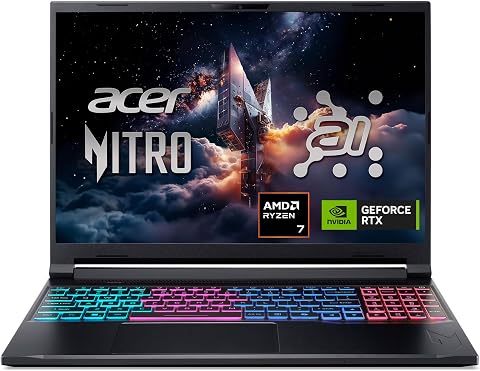
Acer Nitro V 16S AI Gaming Laptop
- ✔ Processor: AMD Ryzen 7 260
- ✔ Graphics: NVIDIA GeForce RTX 5060 Laptop GPU, 8GB GDDR7
- ✔ Memory: 32GB DDR5-5600; maximum 32GB

Acer Nitro V 15 Gaming Laptop
- ✔ Processor: Intel Core i7-13620H
- ✔ Graphics: NVIDIA GeForce RTX 4050 Laptop GPU, 6GB GDDR6
- ✔ Memory: 16GB DDR5; two slots, maximum 32GB
Difficulty: Beginner | Time: 1-3 hours
What You’ll Need
Tools & Materials:
- A phone or computer with internet access
- A calculator or notes app for comparing prices and specifications
- Your preferred payment method
Knowledge:
- The names of the games you want to play
- Your maximum budget, including tax and any accessories
Write down your budget before browsing. Decide whether you need the laptop immediately and whether you are willing to buy from a marketplace seller. Cyber Monday prices and stock can change quickly, so save product pages and note the time you checked each offer.
ASUS ROG Strix G16 Gaming Laptop
The ASUS ROG Strix G16 is our best overall pick because its RTX 5060 and Core i7-14650HX are paired with useful gaming-focused details: a 165Hz display, vapor chamber and tri-fan cooling, and tool-free access to memory and storage. Compared with the Acer Nitro V 15, its RTX 5060 has 8GB of graphics memory rather than 6GB on the RTX 4050, which gives the ASUS the stronger graphics starting point in this group.The 16-inch display runs at 1920 x 1200, so buyers get a taller workspace than standard Full HD but not a higher pixel density than the Nitro 16S’s WUXGA screen. Both 16-inch laptops use RTX 5060 graphics; the Acer counters with 32GB RAM and a 180Hz refresh rate, while this ASUS includes 16GB and reaches 165Hz. Tool-free upgrades help make the ASUS easier to maintain, but its two-hour listed battery life limits its appeal away from an outlet. We would choose it for gaming performance and upgrade access, and skip it if unplugged endurance or a more portable 15.6-inch design is central.
Pros:
- RTX 5060 graphics with 8GB of graphics memory
- 165Hz 16-inch anti-glare display
- Vapor chamber and tri-fan cooling
- Tool-free access to memory and storage
Cons:
- Listed battery life is just two hours
- 16GB RAM is less than the Nitro 16S’s 32GB
- 1920 x 1200 resolution is relatively modest for a 16-inch display
Best for: Players who want RTX 5060 graphics, robust cooling features, Wi-Fi 7, and straightforward memory or SSD access.
Not ideal for: Buyers who need long listed battery life, higher-than-1920 x 1200 resolution, or a lighter, smaller laptop.
Bottom line: We rank the ROG Strix G16 first for its balanced RTX 5060 gaming foundation and upgrade-friendly design, provided buyers accept its short listed battery life.
“We rank the ROG Strix G16 first for its balanced RTX 5060 gaming foundation and upgrade-friendly design, provided buyers accept its short listed battery life.”
Acer Nitro V 16S AI Gaming Laptop
For buyers who want a ready-to-go 16-inch setup, the Acer Nitro V 16S AI pairs RTX 5060 graphics with 32GB of DDR5 memory and a 180Hz WUXGA display. That is double the installed memory in the ASUS ROG Strix G16, and the panel’s 100% sRGB coverage gives this Acer a clearer advantage for colorful games and creative work. Its refresh rate also edges out the ASUS at 180Hz versus 165Hz.Both laptops use an RTX 5060 with 8GB of graphics memory, so display and memory are the more visible distinctions here. The Nitro 16S has a slim 0.79-inch profile and quad-intake cooling, plus a second M.2 slot with one position available for expansion. However, its two memory slots are already at the stated 32GB maximum, leaving no memory headroom beyond the supplied configuration. The ASUS offers tool-free memory and storage access and Wi-Fi 7; this Acer lists Wi-Fi 6. Choose the 16S for its display and installed RAM, but consider the ASUS if upgrade access or newer wireless connectivity matters more.
Pros:
- RTX 5060 graphics with 8GB GDDR7
- 180Hz WUXGA display with 100% sRGB coverage
- 32GB DDR5 memory and a 1TB SSD
- Slim profile with quad-intake cooling
Cons:
- Memory is limited to 32GB maximum
- Only one of two M.2 slots is available for expansion
- Wi-Fi 6 rather than the ASUS’s Wi-Fi 7
Best for: Gamers who want 32GB of memory from the start, a 180Hz screen with full sRGB coverage, and a relatively slim 16-inch chassis.
Not ideal for: Buyers planning to expand beyond 32GB RAM or seeking Wi-Fi 7 and the ASUS’s stated tool-free access.
Bottom line: We recommend the Nitro V 16S for buyers who value its 32GB baseline and color-rich 180Hz screen over memory headroom or Wi-Fi 7.
“We recommend the Nitro V 16S for buyers who value its 32GB baseline and color-rich 180Hz screen over memory headroom or Wi-Fi 7.”
Acer Nitro V 15 Gaming Laptop
The Acer Nitro V 15 is the practical step-down option in this roundup. Its Core i7-13620H, RTX 4050 with 6GB of graphics memory, and 15.6-inch 165Hz IPS display cover the basics for high-refresh gaming, but it does not match the RTX 5060 graphics in either 16-inch pick. We would choose it when the smaller screen and connection options make more sense than the stronger graphics tier.Connectivity is a distinguishing strength: the Nitro V 15 lists Thunderbolt 4, HDMI, Ethernet, and four USB ports, while both 16-inch systems emphasize their own gaming configurations. It also provides two memory slots and supports up to 32GB, unlike the Nitro 16S, which already reaches that ceiling with its included 32GB. The matte Full HD display is smaller and lower resolution than the WUXGA panels in the other two laptops, though all three offer at least 165Hz. This Acer suits buyers who will use wired networking or connect peripherals, but players seeking more graphics headroom should favor one of the RTX 5060 models.
Pros:
- 165Hz matte Full HD IPS display
- Thunderbolt 4, HDMI, Ethernet, and four USB ports
- Two memory slots with support for up to 32GB
- 1TB PCIe Gen 4 SSD
Cons:
- RTX 4050 graphics are a step below the two RTX 5060 laptops
- 6GB graphics memory versus 8GB on the RTX 5060 models
- Memory expansion is capped at 32GB
Best for: Players who want a 15.6-inch Full HD screen, Thunderbolt 4, wired Ethernet, and room to expand memory up to 32GB.
Not ideal for: Buyers prioritizing RTX 5060 graphics, a 16-inch 1920 x 1200 panel, or more than 32GB of RAM.
Bottom line: We place the Nitro V 15 third because its ports and smaller format are useful, but its RTX 4050 makes it the least capable graphics option in this comparison.
“We place the Nitro V 15 third because its ports and smaller format are useful, but its RTX 4050 makes it the least capable graphics option in this comparison.”
As an Amazon Associate we earn from qualifying purchases.
Before You Start
Check the current date and sale terms: Cyber Monday is the Monday after Black Friday in the United States, but retailers may run promotions on different dates or in other regions. A countdown timer does not prove a discount is the best available. Compare the final price, exact model number, seller, shipping cost, and return policy before placing an order.
Gaming laptops can have several configurations under nearly identical product names. Confirm the processor, graphics chip, memory, storage, display, and model number on the specific product page. Do not compare a headline price for one configuration with the specifications of another.
Step-by-Step Instructions
Step 1: Set your spending limit
Write down the maximum amount you can spend, including sales tax, shipping, and any accessories you already know you need. Choose a lower target price as well as a firm ceiling. If you need a headset, mouse, or external storage, reserve money for it before comparing laptops.
Decide how you will pay and whether you will use financing. If an offer depends on a store card, membership, or rebate, include those conditions in your notes. Count a rebate only if you are willing to complete its claim steps and wait for payment.
Tip: Avoid raising your limit just because a model is advertised as a limited-time deal.
Check: You have a target price and a maximum total cost that include tax and shipping.
Step 2: List your games and performance needs
Write down the games you play now and any demanding titles you expect to play soon. Note whether you mainly play competitive games, graphically intensive single-player games, or a mix. Check the games’ published system requirements, especially the recommended graphics chip, memory, and storage.
Decide what display resolution and refresh rate matter to you. A higher refresh rate can make motion look smoother in supported games, while a higher resolution can show more detail but asks more of the graphics chip. Set expectations for the demanding games you play: maximum settings may require a more expensive laptop than smooth play at medium or high settings.
Tip: Compare the laptop’s graphics chip with game requirements, not just with the processor name or a claim such as ‘gaming ready.’
Check: You can describe the performance you need and identify the games that will guide your comparison.
Step 3: Choose a practical specification range
Use your games and budget to define a range rather than fixating on one component. For many current games, 16 GB of memory is a reasonable starting point; some newer games and multitasking needs benefit from more. Check whether the memory can be upgraded and whether doing so affects the warranty. Aim for an SSD with enough capacity for the operating system and your installed games; large game libraries can fill a small drive quickly.
Compare graphics chips within the same laptop power and cooling class. The same chip name can perform differently when manufacturers set different power limits or cooling designs. Look for independent reviews of the exact laptop configuration when possible. Also check screen size, weight, ports, webcam, and battery expectations. Gaming performance usually drops when a laptop runs on battery, so do not treat long battery life as a substitute for checking its plugged-in performance.
Tip: A specification list alone cannot tell you how loud, hot, or fast a particular laptop will be under sustained gaming.
Check: You have a short list of specifications and practical features that fit your games and budget.
Step 4: Find the exact Cyber Monday offers
Search manufacturer and retailer sites for laptops in your range. Open each offer and record the full model number, configuration, listed price, shipping charge, seller name, and delivery estimate. Save the product page or take a note of the listing so you can revisit it if stock changes.
Check the price against the same configuration at other reputable stores. Look at price history when a reliable tracker covers that product and region. Compare the price after required membership fees, coupons, or rebates. A discount percentage may use an inflated reference price, so judge the current total against comparable listings and recent prices.
Tip: Verify that the listed graphics chip and memory belong to the selected option; dropdowns can change the configuration and price.
Check: You have at least two comparable offers with exact model numbers and final costs.
Step 5: Check the seller, returns, and warranty
Confirm whether the retailer or a third-party marketplace seller will fulfill the order. Read the return window, any restocking fee, return shipping rules, and conditions for opened electronics. Check whether the laptop is new, refurbished, or open-box, and read the condition details for anything other than new.
Review the manufacturer’s warranty for the country where you will use the laptop. Check how long coverage lasts, what it covers, and how service is arranged. Save the product page and the retailer’s return and warranty terms. If the seller, model condition, or return rules are unclear, choose a clearer offer.
Tip: A retailer’s return policy and a manufacturer’s warranty are separate protections; check both before checkout.
Check: You know who is selling the laptop, how returns work, and where to get warranty service.
Step 6: Compare finalists side by side
Put your best two or three offers in a simple table or notes list. Compare total price, graphics chip, processor, memory, SSD capacity, screen resolution and refresh rate, weight, ports, and seller terms. Use reviews of the exact configuration to check sustained performance, fan noise, temperatures, and screen quality.
Choose the laptop that meets your gaming needs while staying within your maximum total cost. If two models are close, prioritize the feature that matters most to your use, such as stronger graphics for demanding games, a better display for competitive play, or lower weight for frequent travel. Do not pay extra for a feature you will not use.
Tip: Look for the exact model suffix in reviews; a review of a similar model may cover a different screen or graphics power limit.
Check: You can explain why your preferred model is a better fit than the other finalists.
Step 7: Review the checkout details and place the order
Before paying, confirm the selected configuration, seller, condition, quantity, final price, shipping address, delivery date, and return terms. Remove optional add-ons you did not choose. Apply only coupon codes or rebates whose rules you understand, and check that the displayed total reflects them.
Submit the order only when the checkout total is within your limit. Save the confirmation, order number, receipt, and any offer terms. If the listing changes or the total exceeds your limit, stop and compare another offer instead of rushing through checkout.
Tip: Stock notices and timers can create pressure; take the time to confirm the model number and total.
Check: You receive an order confirmation showing the correct laptop, configuration, seller, and amount.
Step 8: Inspect the laptop when it arrives
Check the package for visible damage before discarding its packaging. Compare the label and system information with your order: confirm the model, processor, graphics chip, memory, and storage. If the unit is damaged, incorrect, or described inaccurately, photograph the issue and contact the retailer promptly within its stated return window.
Install operating system and driver updates, then open a game you know well. Check that the display runs at its advertised resolution and refresh rate, and listen for unusual noises. Use the laptop on a hard surface with its charger connected during demanding play. Keep the packaging until you are satisfied that the laptop works and you plan to keep it.
Tip: Do not open the laptop or make hardware changes before checking the return policy and warranty conditions.
Check: The delivered configuration matches the order, updates install, and a familiar game runs without obvious faults.
Common Mistakes to Avoid
- Buying based on the discount percentage or a low headline price. — Compare the exact configuration’s current total with similar offers and recent prices; include tax, shipping, membership costs, and rebate conditions.
- Assuming two laptops with the same graphics chip will perform the same. — Check reviews for the exact model and configuration, including sustained gaming performance, cooling, and noise.
- Overlooking memory or storage limits. — Check the installed capacity, upgrade options, and whether upgrades affect warranty coverage before ordering.
- Skipping the return policy or seller details. — Confirm who fulfills the order, the condition of the device, return costs, and warranty service before paying.
Troubleshooting
Problem: The advertised price changes at checkout.
Solution: Check whether the discount requires a coupon, membership, selected configuration, or payment method. Recalculate the total with tax and shipping. If it exceeds your limit or the terms are unclear, do not submit the order.
Problem: The laptop is sold out before you can buy it.
Solution: Use your saved shortlist to compare another exact configuration from a retailer with clear seller and return terms. Avoid switching to a much weaker model solely to keep the same discount percentage.
Problem: The delivered laptop does not match the listing.
Solution: Photograph the product label and the issue, keep the packaging, and contact the retailer through its official support channel within the return window. Share your order number and saved listing.
Problem: A game runs slowly or the laptop gets unusually hot.
Solution: Connect the charger, place the laptop on a hard surface, install official graphics and system updates, and check that the game uses the dedicated graphics chip. If performance remains far below the reviewed results or temperatures trigger shutdowns, contact the manufacturer or retailer while return coverage is active.
What Success Looks Like
You have ordered a gaming laptop that matches the configuration you compared, fits your total budget, and comes from a seller with return and warranty terms you understand. After delivery, its model and components match the order, it accepts updates, and it runs a familiar game at the settings and performance you expected while plugged in.
Next Steps
Keep the receipt, order confirmation, warranty details, and packaging until you decide to keep the laptop. Set up backups and install games from trusted stores. Recheck return deadlines if you are still evaluating performance. If the laptop meets your needs, record its model number and warranty contact information; if it does not, begin the return or support process before the seller’s deadline.
Frequently Asked Questions
How much should I spend on a Cyber Monday gaming laptop?
Set a limit based on the games you play and the performance you expect. Add tax, shipping, and accessories to the price. Compare several exact configurations rather than using one universal price target; graphics performance, screen quality, and build features can change the cost substantially.
Is 16 GB of memory enough for gaming?
It is a reasonable starting point for many current games, but requirements vary and running other applications at the same time uses more memory. Check the recommended requirements for your games and whether the laptop supports a memory upgrade.
Should I buy a refurbished or open-box laptop?
Consider one only if the condition is clearly described, the seller is reputable, the price justifies the condition, and the return and warranty terms are acceptable. Confirm whether accessories are included and whether the original manufacturer’s warranty still applies.
Can I trust a Cyber Monday countdown or discount percentage?
Treat it as a promotion claim, then compare the exact model’s total price with other retailers and recent price history where available. Check coupon and membership requirements, shipping costs, and whether the reference price applies to the same configuration.