

🔍 Read the full analysis: 6 Best Thunderbolt Docking Stations For A More Capable Desk In 2027 on ThorstenMeyerAI.com

Get movie nights delivered free with Prime
- Fast, free delivery on millions of items
- Prime Video, Amazon Music and more included
- Member-only deals all year
TL;DR
A buying guide from ThorstenMeyerAI.com ranks six Thunderbolt docks, placing the Anker Prime 14-in-1 Thunderbolt 5 Dock first and highlighting several Thunderbolt 4 alternatives. The recommendations depend on a buyer’s computer, display setup and power needs; the source does not provide independent test results or establish compatibility for every configuration.
ThorstenMeyerAI.com has published a six-dock buying guide for people building or upgrading a desk setup, ranking the Anker Prime 14-in-1 Thunderbolt 5 Dock as its best overall pick. The guide compares it with five Thunderbolt 4 docks and says shoppers should match charging and display support to their computer rather than choosing by port count alone.
The six selections are the Anker Prime 14-in-1 Thunderbolt 5 Dock; Plugable’s TBT-UDM and 100W Thunderbolt 4 dock; Dell’s Pro SD25TB4, WD19TB and WD19TBS. For other options, see this Thunderbolt dock buying guide. The source ranks Anker first for its newer Thunderbolt generation and broad connection set. It describes the TBT-UDM as a cross-platform Thunderbolt 4 option and the Dell Pro SD25TB4 as a newer Dell-oriented choice.
The Plugable 100W model is presented for shoppers who prioritize 100W charging and dual-monitor use, with more laptop dock options covered in this laptop docking station guide. The guide distinguishes Dell’s WD19TB from the WD19TBS by their power configurations, citing a 180W adapter for the WD19TB and 130W Power Delivery for the WD19TBS. Those figures describe different aspects of the power setup and should not be treated as interchangeable laptop charging outputs.
ThorstenMeyerAI.com says it ranked the docks by Thunderbolt generation, host compatibility, charging, display support, port variety and clarity of use case. The supplied material does not include benchmark results, price comparisons, a publication date or hands-on test details. Its rankings are the guide’s assessment, not proof that one model will perform best for every buyer.
The 6 picks
- 1
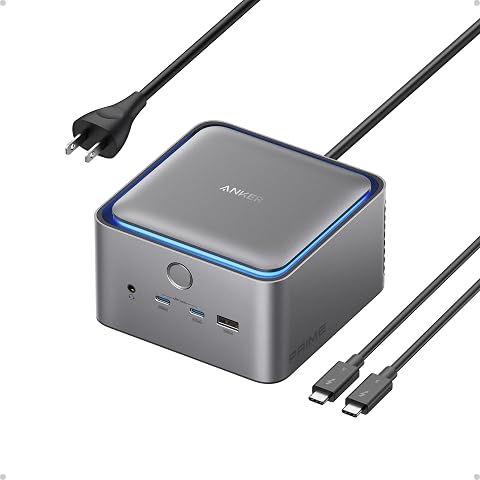 Anker Prime 14-in-1 Thunderbolt 5 Docking StationView on Amazon →
- 2
 Dell Pro Thunderbolt 4 Smart Dock SD25TB4 – USB-C Station 130W, 4 Displays 4K…View on Amazon →
- 3
 Plugable Thunderbolt 4 Dock with 100W Charging, Dual MonitorView on Amazon →
- 4
 Plugable Thunderbolt 4 Dock (TBT-UDM) for Mac and WindowsView on Amazon →
- 5
 Dell WD19TB Thunderbolt Docking Station with 180W AC AdapterView on Amazon →
- 6
 Dell Thunderbolt Dock WD19TBS with 130W Power DeliveryView on Amazon →
Match the Dock to Your Desk
A dock can simplify a workstation by connecting displays and peripherals through one laptop connection, but the right choice depends on the complete setup. A Thunderbolt 5 dock may offer more bandwidth headroom, yet a computer without the relevant support may not benefit from that generation. For a buyer with a Thunderbolt 4 laptop and standard office devices, a Thunderbolt 4 model could be a more practical match.
The guide’s central consumer takeaway is to check the laptop’s exact port specification, monitor limits and power requirements before buying. A dock’s advertised connections do not by themselves establish that a particular computer can drive every display at its maximum resolution and refresh rate, or charge at the expected rate while under load.
Popular right now

Sony 65 Inch BRAVIA 5 Mini LED 4K HDR Smart Google TV (K-65XR50)

Ninja CREAMi Scoop & Swirl 13-in-1 Ice Cream and Soft Serve Maker, NC701

Vitamix Nano Personal Blender with SmoothiePilot, Black
As an affiliate, we earn on qualifying purchases.
Six Models, Different Tradeoffs
The list brings together one Thunderbolt 5 dock and five Thunderbolt 4 models. The source frames the main choice as paying for newer-generation bandwidth and a broad connection selection, or opting for a Thunderbolt 4 dock whose listed features better match a specific desk or existing computer. It gives the Plugable TBT-UDM and Dell Pro SD25TB4 distinct roles rather than treating all Thunderbolt 4 docks as equivalent.
For the two Dell WD19 models, the guide advises checking which power configuration fits the laptop. It also recommends accounting for each monitor’s resolution, refresh rate and input, as well as the computer’s operating system and supported number of external displays. These details can affect the result even when a dock has the needed physical ports.
“A dock’s port count alone does not guarantee that every screen or peripheral will work as expected.”
— ThorstenMeyerAI.com buying guide
Compatibility Depends on the Host
The source does not specify exact supported monitor resolutions, refresh rates, operating-system combinations or laptop models for each dock. It also gives no current prices, warranty details or comparative test data. The guide cautions that host computer capabilities can change display behavior and charging results, so its general descriptions cannot confirm a particular buyer’s setup will work as planned.
The supplied material also does not establish that the Anker dock’s Thunderbolt 5 bandwidth will benefit every user, or that the WD19 models are incompatible with newer computers. Readers should check current manufacturer specifications for the exact dock configuration and laptop before purchase.
Check Specs Before Buying
The next step for shoppers is to compare their computer’s port and operating-system specifications with the dock maker’s compatibility information. They should list their displays’ resolution, refresh rate and inputs, then confirm the laptop supports the intended multi-monitor arrangement. Anyone planning to replace a laptop power adapter should compare the manufacturer’s power recommendation with the dock’s delivered charging output.
The guide names no upcoming test, product launch or follow-up milestone. Its rankings may be useful as a shortlist, but buyers will need current product listings and manufacturer documentation to confirm pricing, availability and setup-specific support.
Key Questions
Which dock does the guide rank first?
ThorstenMeyerAI.com ranks the Anker Prime 14-in-1 Thunderbolt 5 Dock first overall, citing its Thunderbolt 5 positioning and broad connection focus.
Which Plugable model is presented as the cross-platform choice?
The guide identifies the Plugable TBT-UDM as its cross-platform Thunderbolt 4 option. It describes Plugable’s other listed dock as a choice for buyers prioritizing 100W charging and dual-monitor use.
Does a dock with multiple display ports support every monitor setup?
No. The guide says support depends on the computer’s display limits, operating system, monitor inputs and the exact connection configuration. Check those specifications before relying on a dock for a particular resolution or refresh rate.
What is the difference between the WD19TB and WD19TBS power details?
The source lists a 180W adapter for the WD19TB and 130W Power Delivery for the WD19TBS. These are different power specifications, so confirm the laptop’s requirements and the manufacturer’s details rather than assuming the figures mean the same thing.
Source: ThorstenMeyerAI.com